
For volleyball players, the University Athlete platform is used heavily in the college recruitment process. We recommend that all Pace Bootlegger players create and maintain a profile on this site.
On this page, we will:
- Explain why University Athlete is important
- Show you how to set up your profile
- Share some resources for creating impactful profile content

Why University Athlete?
AAU and USA Volleyball integrate with UniversityAthlete.com by feeding participant data into the platform, allowing college coaches to identify, track, and evaluate prospects at major tournaments. It serves as the primary recruiting database for college coaches to manage schedules and player profiles at these events.
Key Integration Points:
- Tournament Data Integration: UniversityAthlete.com acts as the official recruiting system for major AAU and USA Volleyball (USAV) events, including Nationals.
- Coach Access: Hundreds of college coaches use the platform to scout players at these specific events.
- Player Profiles: Athletes' club-provided data and tournament results are accessible to recruiters via the site.
.
This integration ensures that college coaches have real-time access to rosters, schedules, and player information during high-stakes, competitive events.
How to Set Up Your Profile
The process of creating an account and profile with UniversityAthlete.com isn't difficult, but there are quite a few steps. To help you navigate it, we've captured screenshots for the "critical path" below; be advised that in many cases you'll be toggling back to your email to retrieve verification codes or access links.
Before You Begin
Here are a few recommendations to make the process easier:
- For the initial setup, it might be easier for you to use a laptop or desktop. It's definitely possible to do this with your phone, but with the frequent back-and-forth between the UniversityAthletes.com site and your email, you might find it easier to navigate.on a larger screen.
- Have your USA Volleyball Membership number and/or your AAU Membership handy. This is very important, because the membership number is how coaches will be able to use their tournament app to find your profile.
You can find your USA Volleyball membership number by signing into your SportsEngine account (which you used to sign up for your WEVA membership).
Select the "Memberships" menu item. Then find your WEVA membership in the list and click on it,
Your player profile will pop up, and on the right side, you will see a "Save Membership Card" button. Click it, and select "Print Card" from the drop-down menu.
An image of your membership card will appear; below your name on the left side, you will see a number.
This is the number you will use under "USA Volleyball Membership Number."
- Be ready for a lot of verification steps, which somewhat interrupt the flow of the setup. But remember these minor inconvenience at the start are ultimately ensuring better security for your data.
Once you're ready, follow the steps below to create your account.
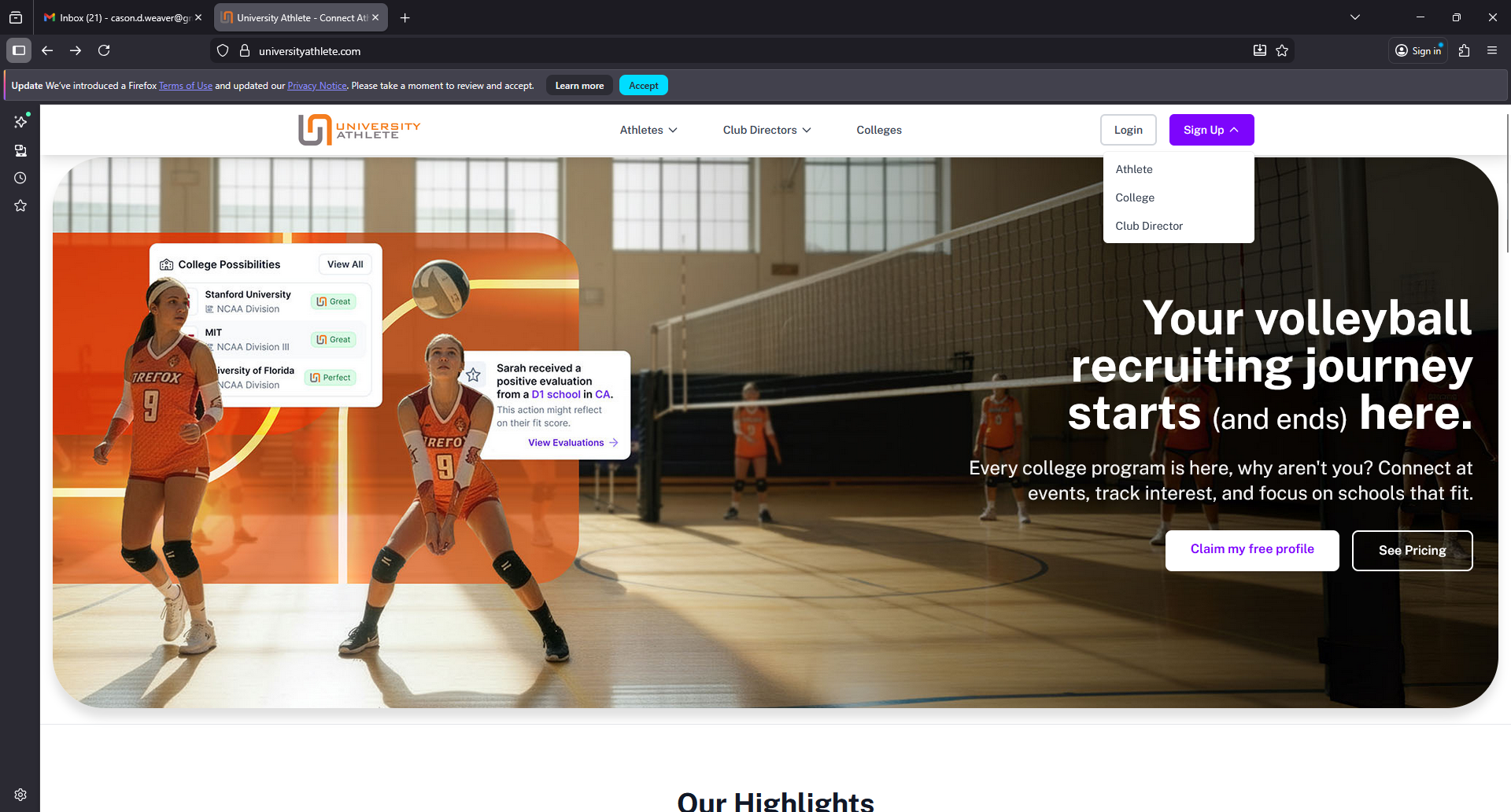
Step 1: Go to UniversityAthlete.com
Go to UniversityAthlete.com, select "Sign Up", and then select "Athlete" from the drop-down menu.
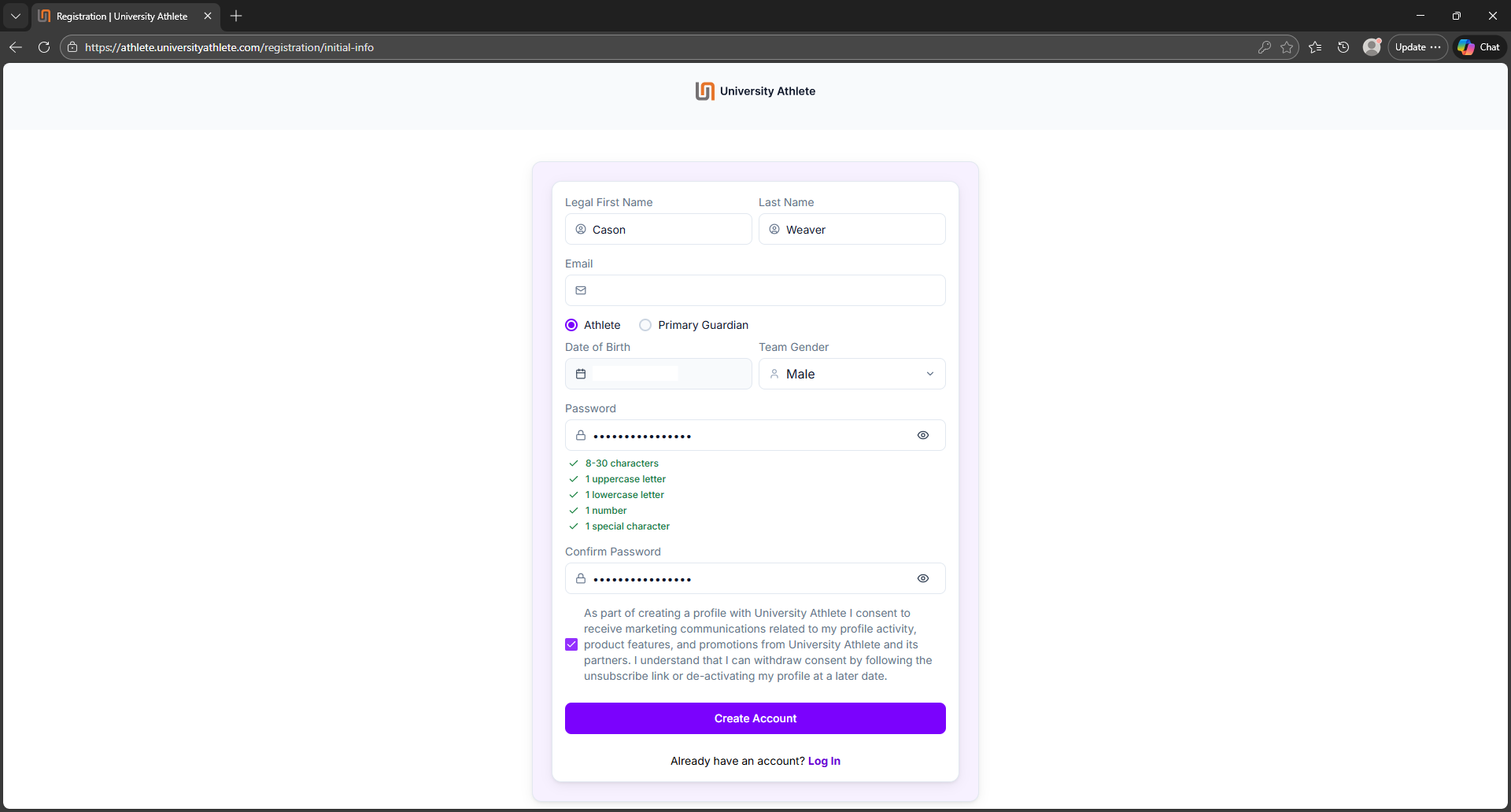
Step 2: Password and Birth Date
Next, fill out your identifying information (name, date of birth) and set a password for your new account.
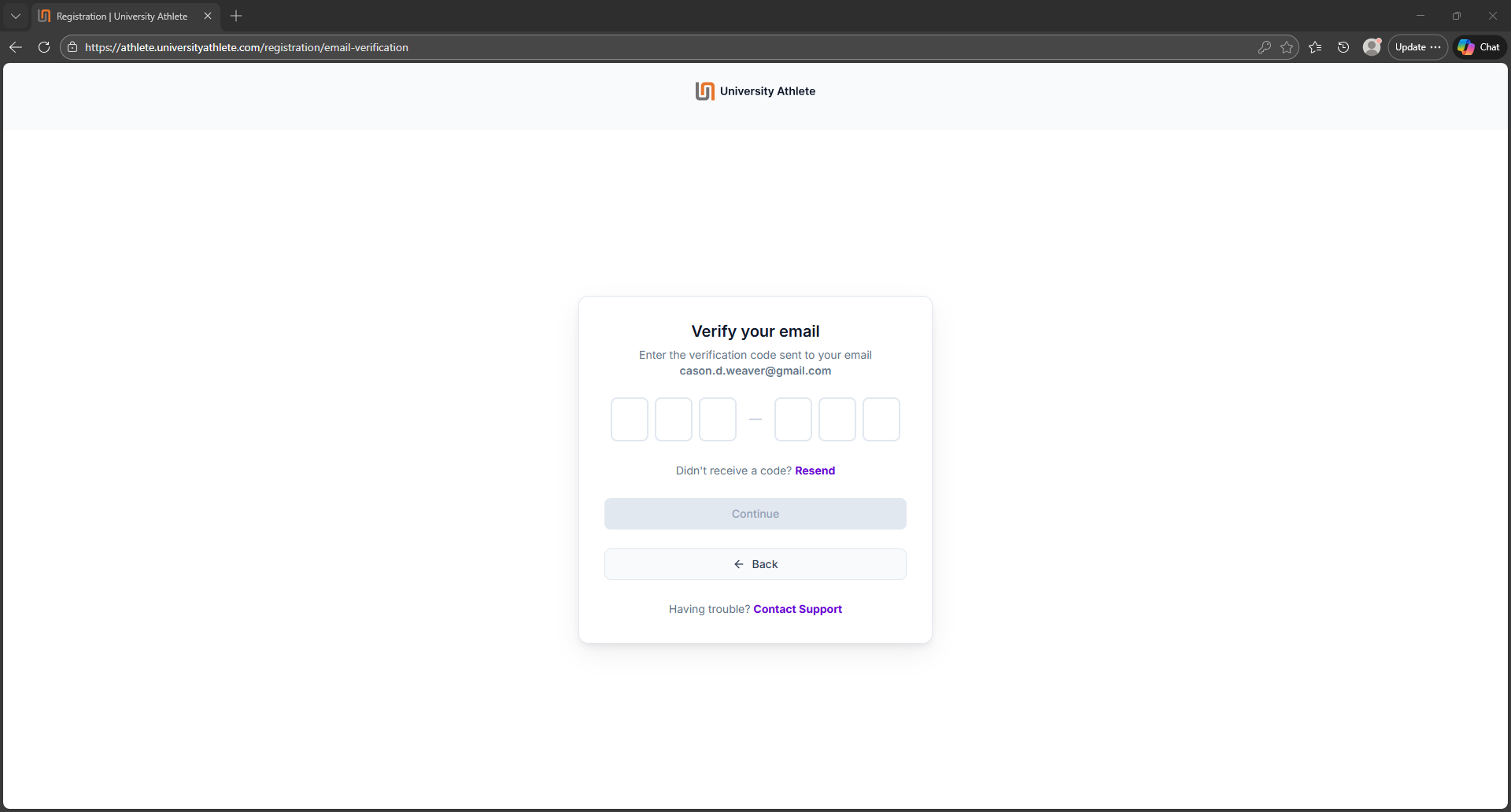
Step 3: Verify Your Email
This is the first of many verifications to come - and, while that is inconvenient during setup, it's ultimately a good thing that University Athletes is being very careful with your personal information.
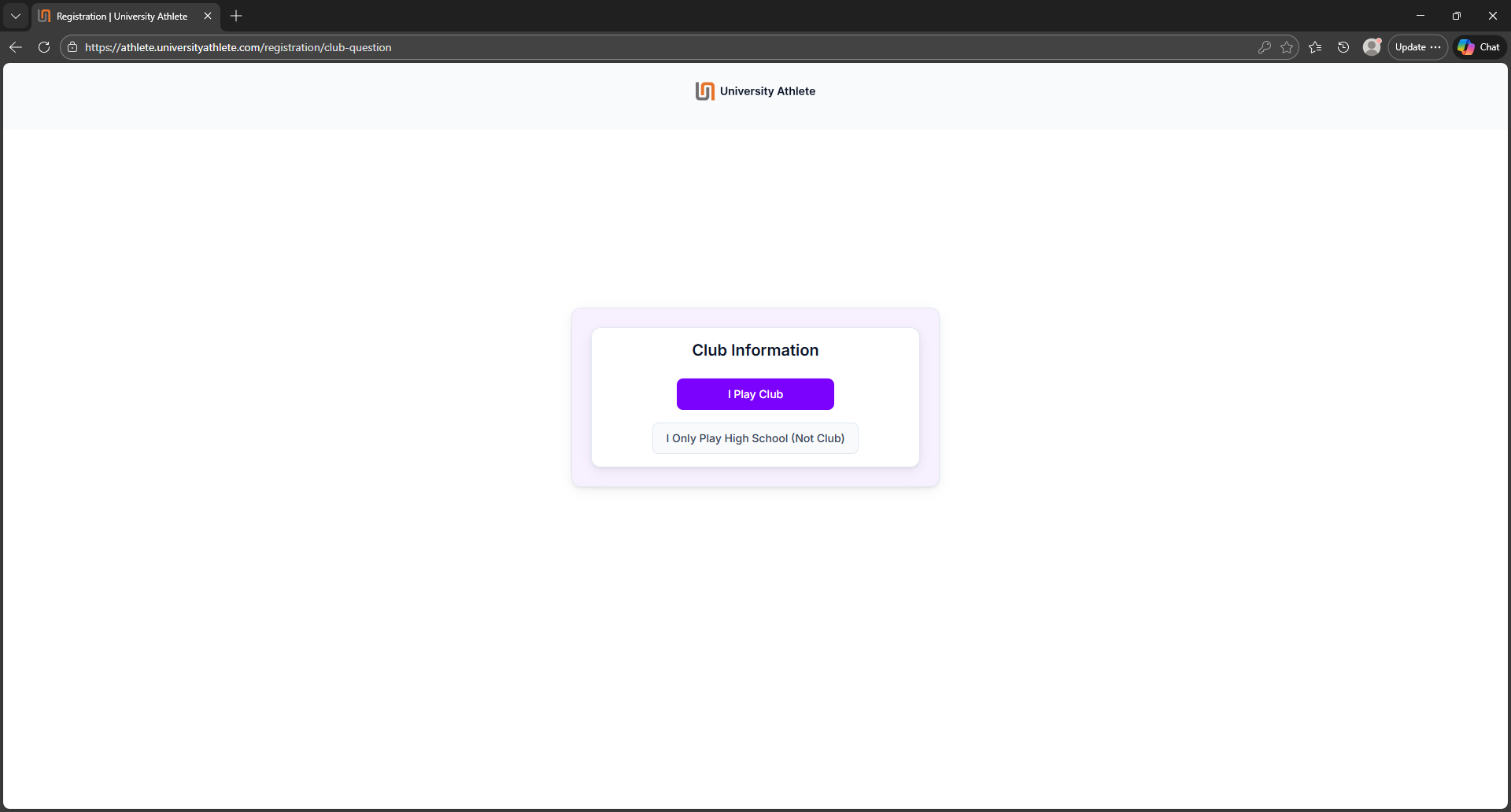
Step 4: Select "I Play Club"
Click on the purple button that says, "I play club".
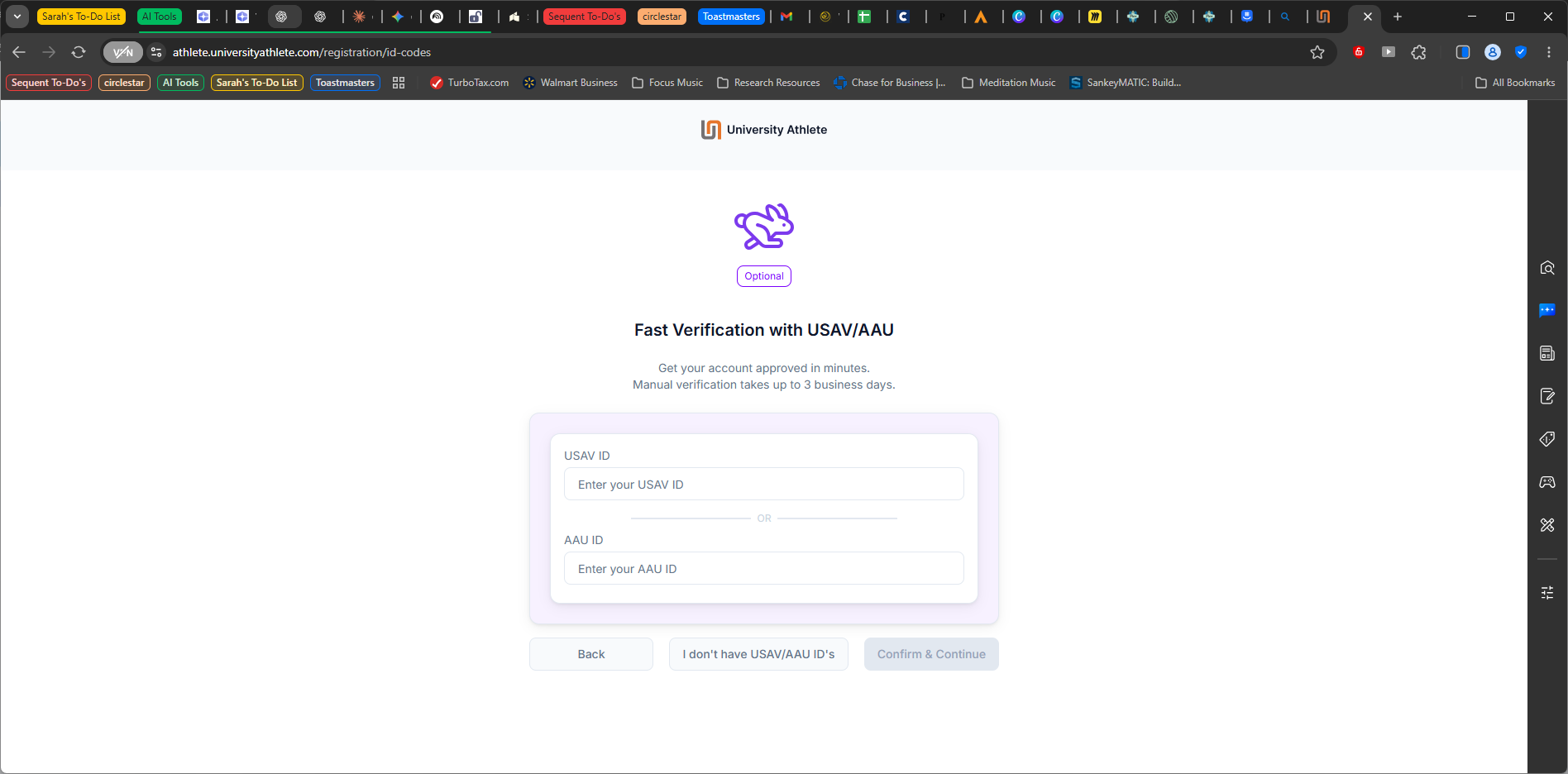
Step 5: Connect Your USA Volleyball / AAU Membership
Now, you'll verify your membership with either USA Volleyball (via your WEVA membership) or AAU. You only need one to register with University Athletes.
Important: If you're attending a tournament in the near future, you'll want to provide the membership number for the organization associated with that event. For example, if you're headed to Steel City or the East Coast Championships, these are USA Volleyball events - so you'll want to ensure your profile is connected to that membership.
Note that you can (and should) update the other membership number after your account has been created.
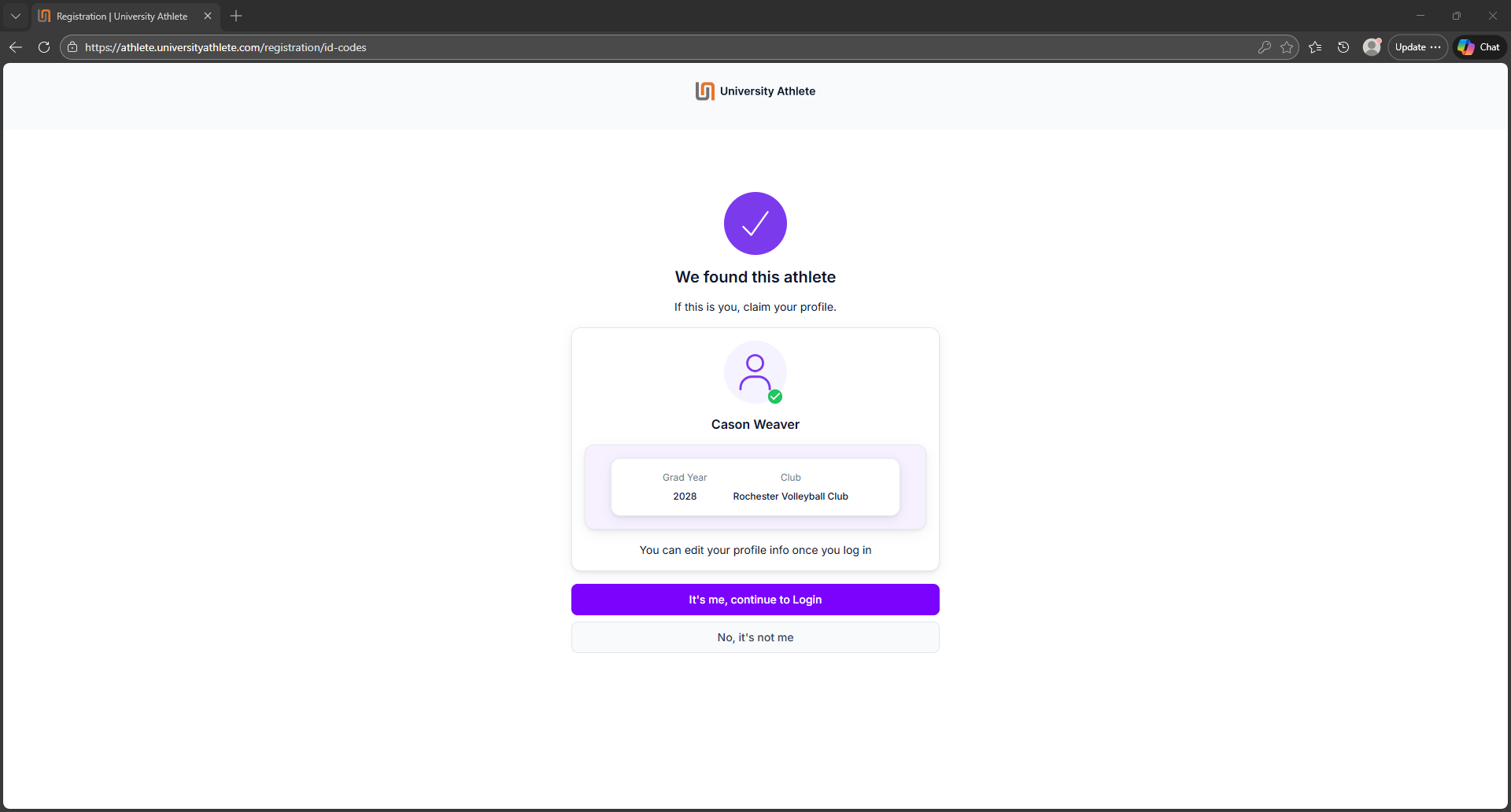
Step 6: Confirm the Membership "Lookup" is Correct
If you've entered your member number correctly, you should see your name displayed - along with "Rochester Volleyball Club" as your club, and your graduation year.
Confirm that your information is correct by clicking "It's me, continue to login" - OR, if the membership information does not appear correct, click, "No, it's not me" to go back and re-enter your membership number.
Steps 7, 8, and 9
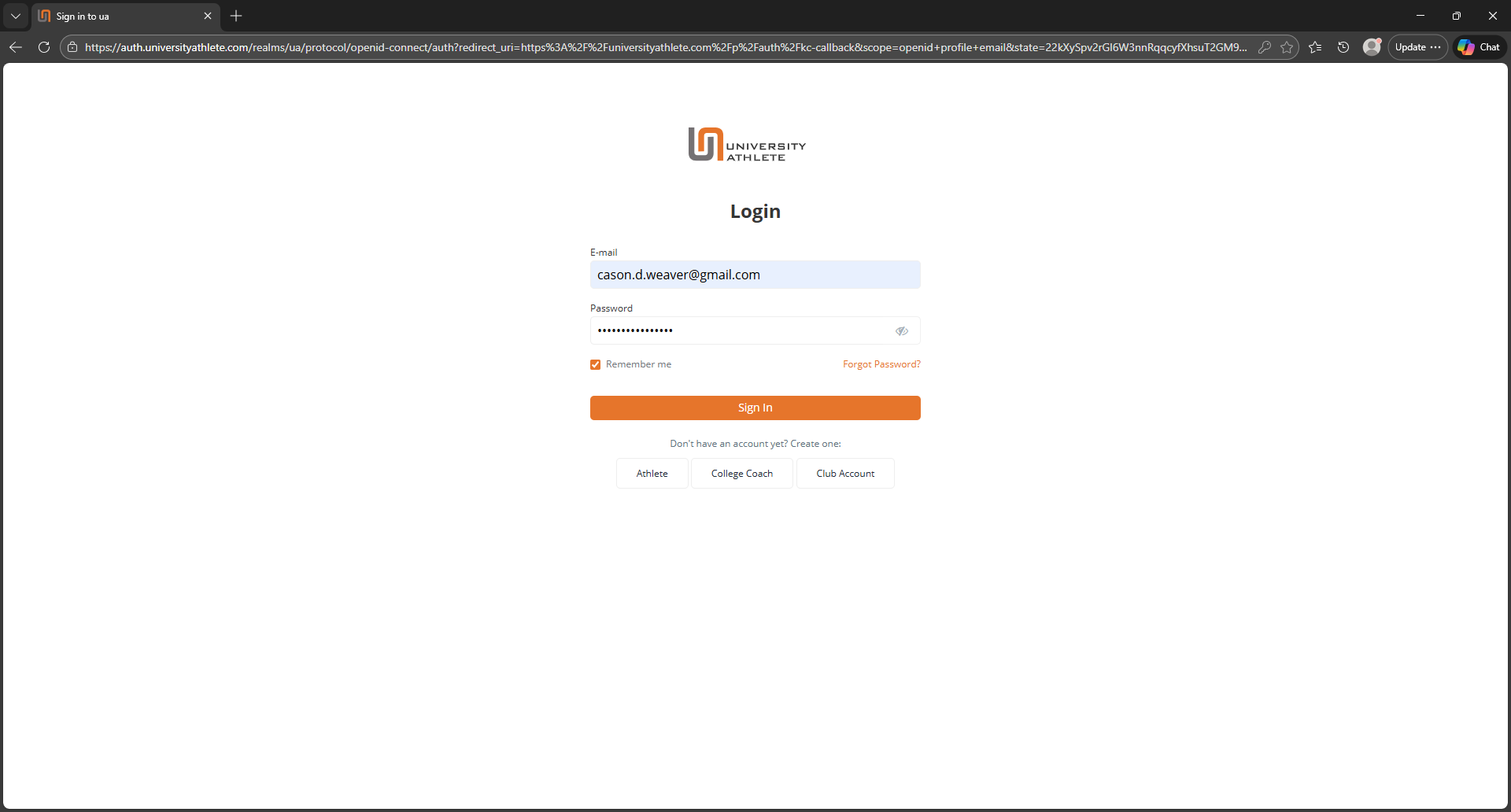
Steps 7, 8, and 9: Log In, Get Code, Verify
Now, to log back in, you'll enter your username and password.
Then you'll need to use 2-factor authentication to verify your account by clicking the orange "Receive Code" button.
A code will be sent to the email you used to create the account; toggle over to that email, retrieve the code, and enter it back on the browser page you are using to log in.
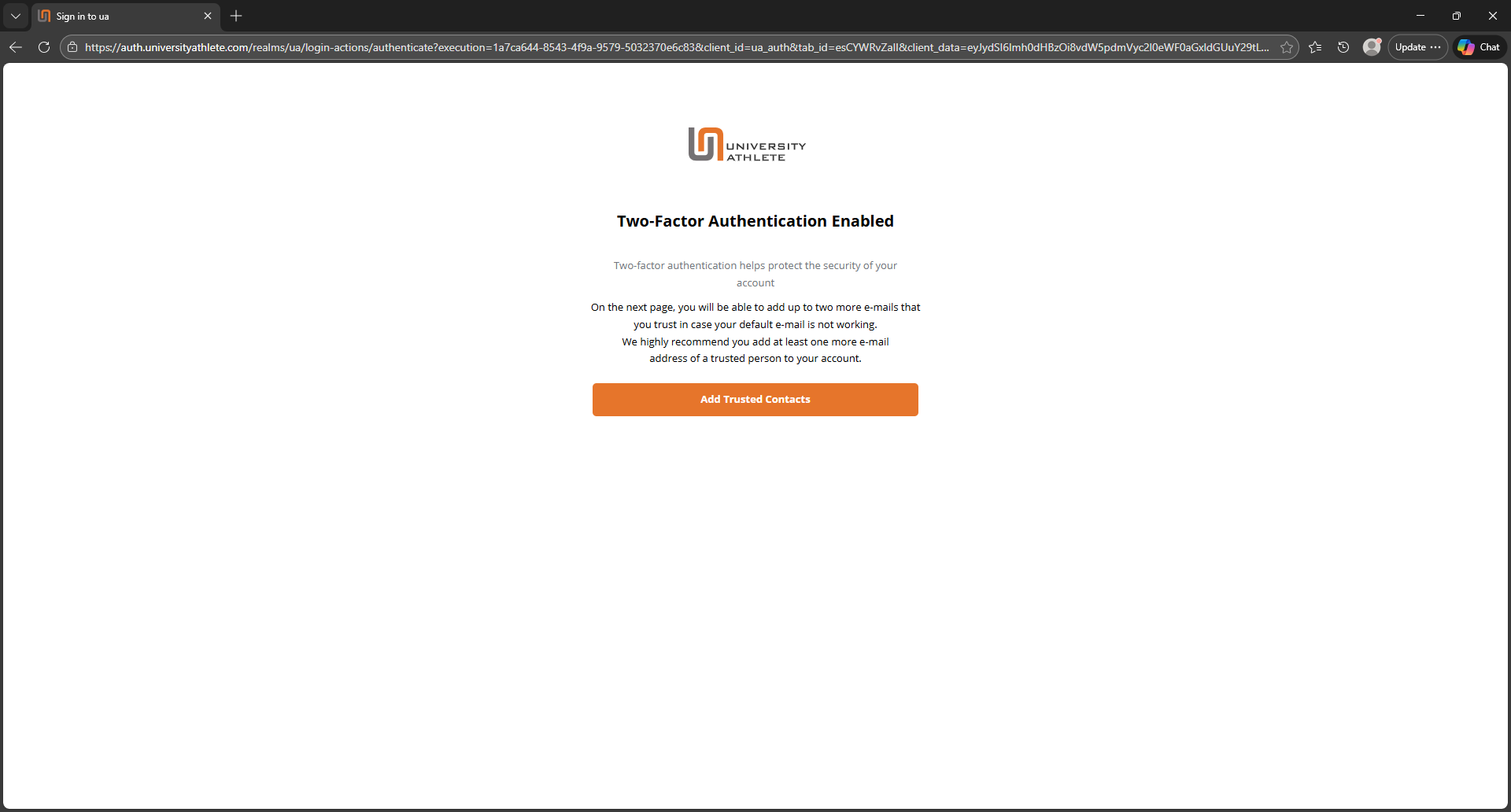
Step 10: Add Trusted Contacts
Once you have verified your account successfully, you will have the option to add up to two "trusted contacts" which can be used to retrieve your account credentials if you lose them.
Note that for each contact you add, you'll need to verify the authenticity of the email address.
When you're finished adding trusted contacts, click the orange "Continue to Site" button.
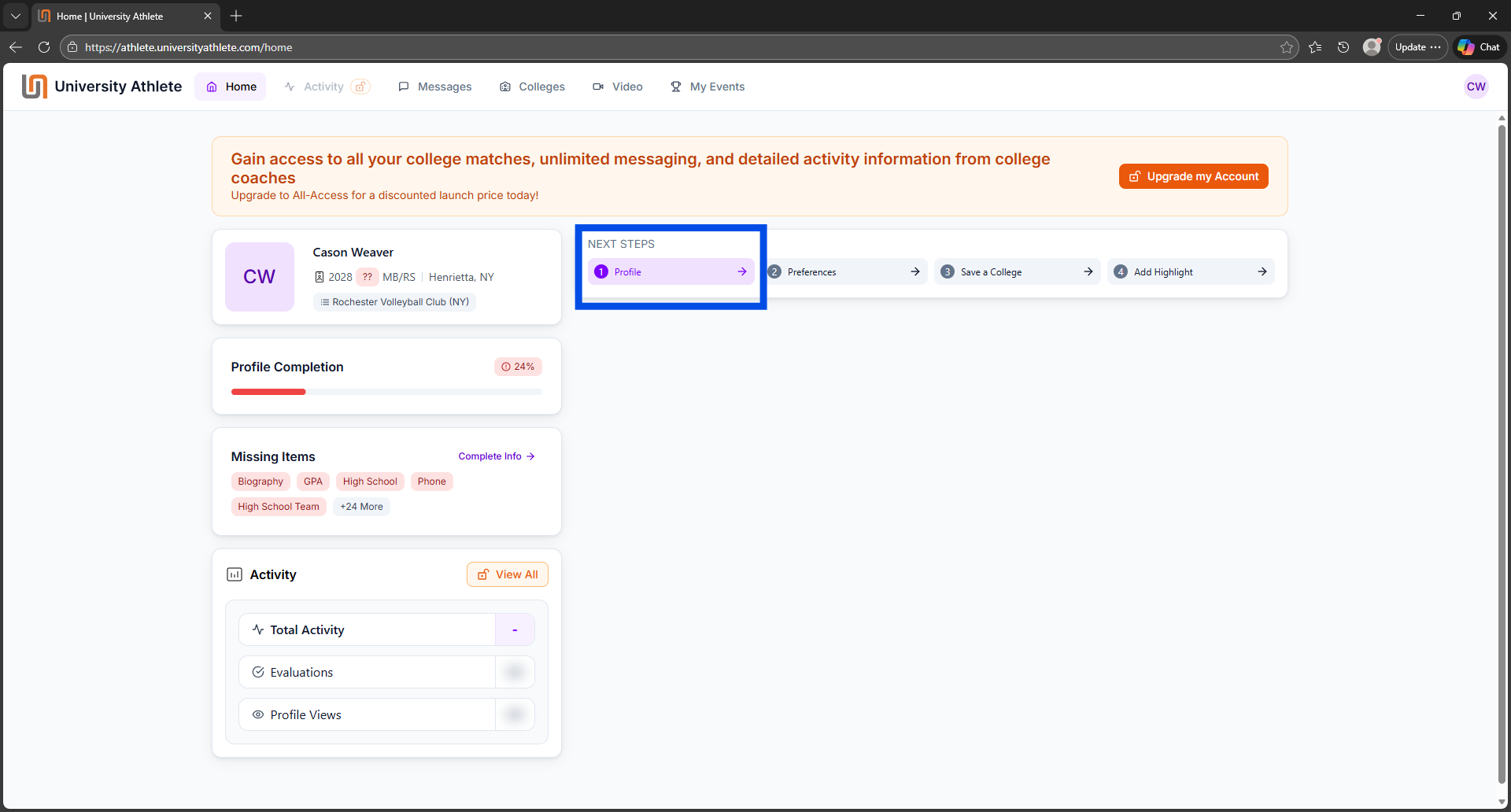
Step 11: The University Athlete Dashboard
Welcome to your dashboard! Click on "Profile" under "Next Steps" to start loading your content.
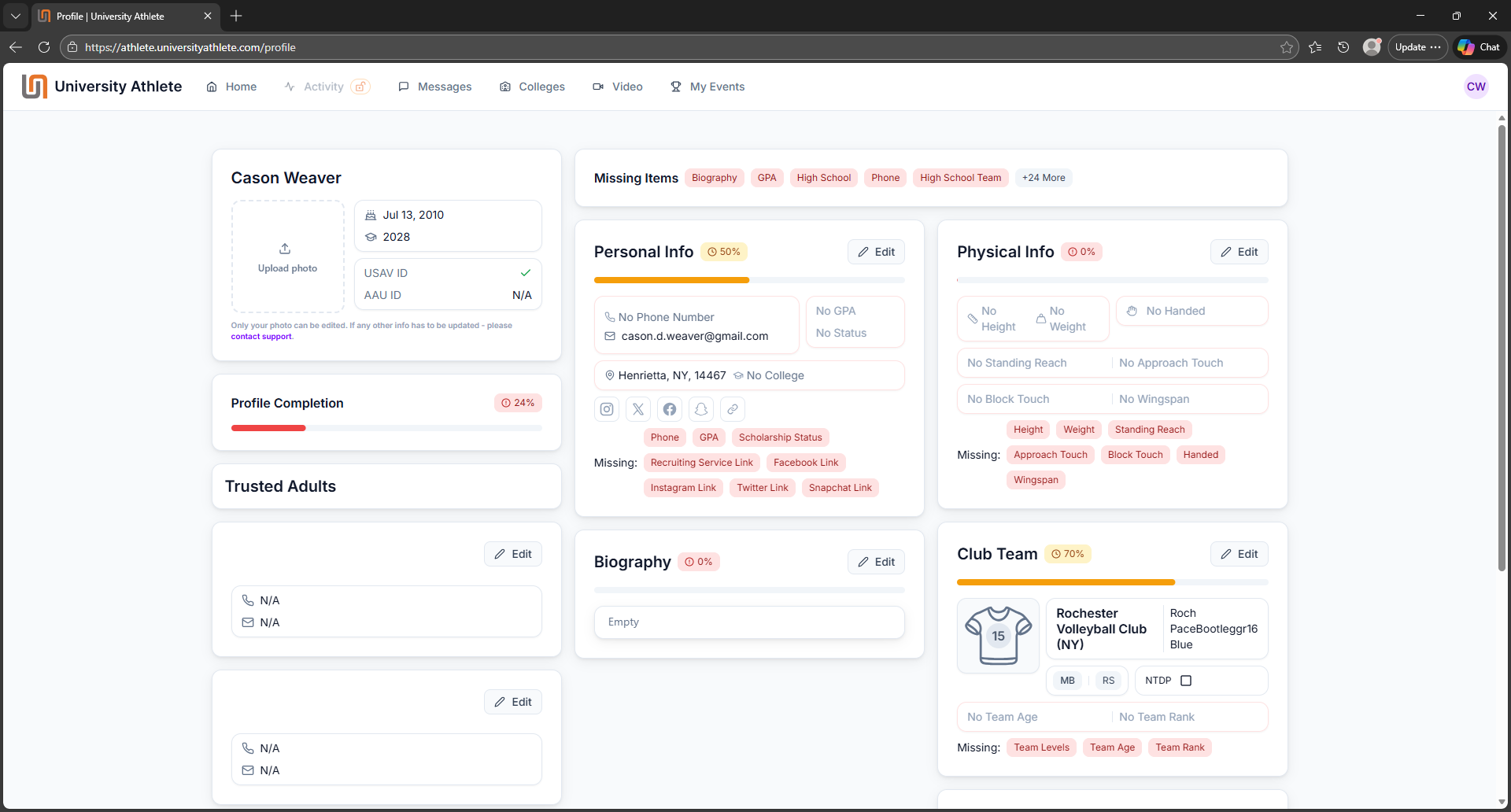
Step 12: Create your profile!
At long last - you're ready to load the content you've created into University Athlete!
Visit "Building Your College Recruiting Profile: Goals and Key Content" for important recommendations on how to get the best results.
What To Consider When Creating Your Profile Content
Here are some helpful articles to guide your thinking as you build out your profile: